
As someone who enjoys design and used plenty of no-code website builders, the more websites I created, the more I became curious about coding. Even with no-code, they still use coding terms, such as div blocks; static, relative, and absolute positioning; and margins and padding decided by the number of pixels (px). While building up a website, I’d think, what does this mean?
So, at the start of this month, I decided to take a coding class. (It’s this one from Udemy, if you were curious.) To summarize, I’ve loved it so far. Learning about the backend functioning of something involved in my every day; I felt like my mind was blown.
As I’m still in the very beginner phase, the first coding language I was introduced to was HTML. It’s one of the most common coding languages and is the language used when websites were first conceived.
To help me learn this language, I was walked through how to make your basic, 90s-style website. The end product looks like this:
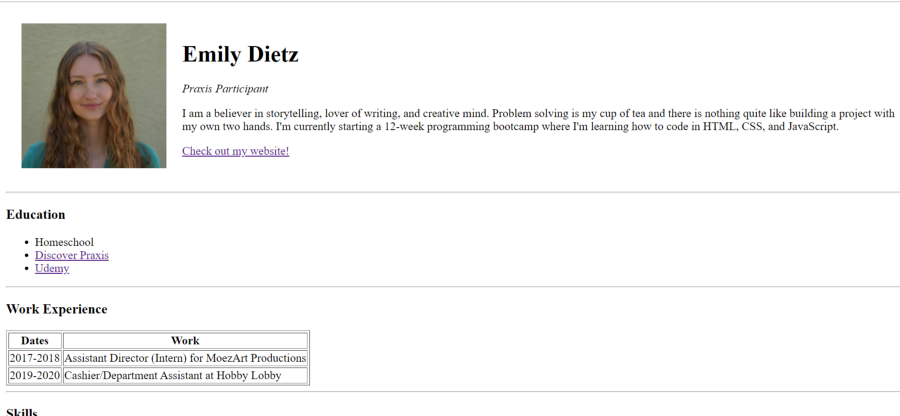
Not super impressive, but the backend of this website is where things get interesting. In order to make this, there were a few elements I had to use.
Here are 5 of those elements:
<HTML> Language Basics
In order to use a coding language, you have to understand its syntax — aka the rules of what symbols mean.
In HTML, what is used to mark a tag is by using angle bracket (<>) symbols. For example, to add a paragraph, I’d use <p>. The way to finish off an element is to use a slash (/) in between the angle brackets. Then, the content of said element would be typed between the tags.
For example, if I wanted to add a paragraph to a website, I would code:
<p>I love pancakes!</p>
Heading Tags (like <h1>)
In a Google Doc or a Word Doc, if you wanted to add a heading, you’d simply click on the drop-down bar and choose ‘heading 1’ or ‘heading 2’, but in order to create a heading in HTML, you have to use a heading tag.
In a coding context, that might appear like this:
<h1>Emily Dietz</h1>
If you wanted to change that to a heading 2, you’d simply change the tags to <h2></h2>.
An important thing to note is that when using heading tags, they will only appear if you use a tag that’s valid. For example, a <h8> tag would do nothing, since a ‘heading 8’ does not exist. The only headings that exist are headings 1–6.
Thematic Break Tag<hr>
How to put a horizontal line through the body of a website: add the <hr> tag as a line in your code.
Not the most complicated, but relevant.
Image Tag <img>
With an image tag, you have to add an image source and an “alt”, which is the text that will appear if the image can’t load on the website.
There are two options for a source: either from your local files or somewhere uploaded online.
The syntax of the tag looks like this:
<img src=“” alt=“”>
“Scr” is the source, and “alt” is short for alternative text. So, if I wanted to include an image to my website, say this gif:

Then I would add this line of code:
<img src=“https://media.giphy.com/media/3oriO0OEd9QIDdllqo/giphy.gif” alt= “cute cat reaching out his paws”>
Or something like that.
Unordered List Tags (Bullet List) <ul>
Unordered lists are how you achieve a bullet point list on a website. To accomplish this, you use the <ul> (unordered list) tag along with the <li> (list) tag.
The <ul>
The syntax looks like this:
<ul>
<li>Cats</li>
<li>Dogs</li>
<li>Birds</li>
</ul>
It would appear on a website like this:
- Cats
- Dogs
- Birds
(Minus the line spaces but medium adds them.)
Without CSS styling, there isn’t much you can do to make an HTML website look pretty. But, HTML is the basic backbone of the website. Things like headers, images, and paragraphs are all formed in HTML.
As for coding in general, I’m excited to learn even more as I progress through the class. So far, I’ve coded one website and am currently coding a second one with CSS styling included.
Stay tuned for my next installment!
 Emily Dietz
Leave a comment